Import the package
Open the PhotoLife EN .unitypackage and click Import. Install the portrait add-on afterward if you want portrait frames.
Photo frames for VRChat
Add a name or date to your favorite frame.
Make it your own and enjoy taking photos in VRChat.
PhotoLife in action
Use a Unity project with the VRChat Avatars SDK and Modular Avatar installed.
Using the free edition? Import the Free package and add Assets/nekolife/PhotoLifeFreeEN/PhotoLife.prefab to your avatar. No portrait add-on is needed. Choose from 10 designs and apply one frame.
Open the PhotoLife EN .unitypackage and click Import. Install the portrait add-on afterward if you want portrait frames.
Drag Assets/nekolife/PhotoLifeEN/PhotoLife.prefab from the Project window onto your avatar in the Hierarchy.
Select PhotoLife on your avatar and click Open editor in the Inspector. Keep Unity open while you edit.
Edit in your browser
Library on the left
The frame appears in Selected frames at the bottom.
Just above the canvas
You can also use the frame on its own, without adding a photo.
Top right of the editor
Open Backup at the top right.
VRChat Expressions menu
Expressions › PhotoLife - open this menu
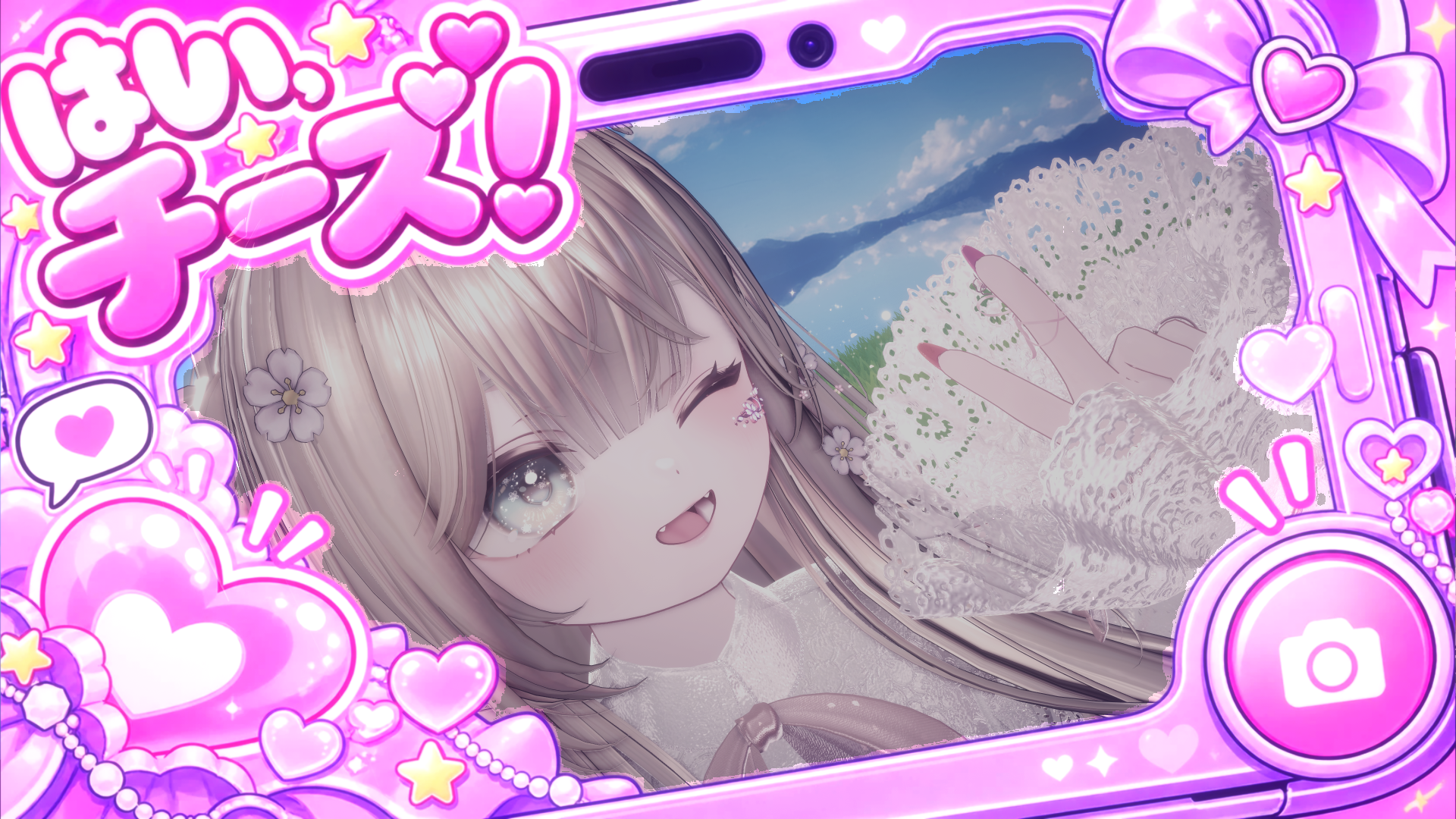
Switch to the frame you want
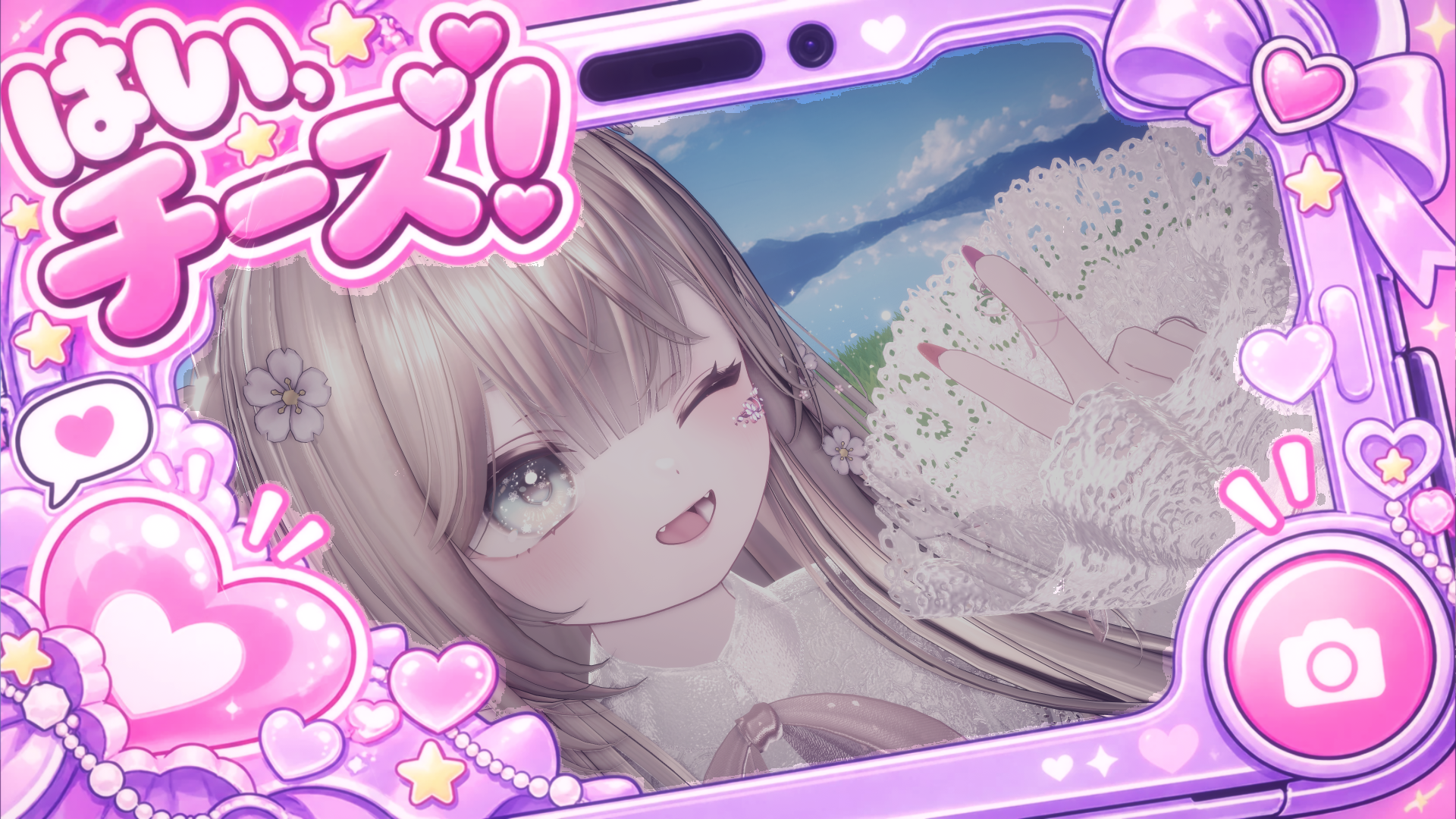
Soften the frame colors
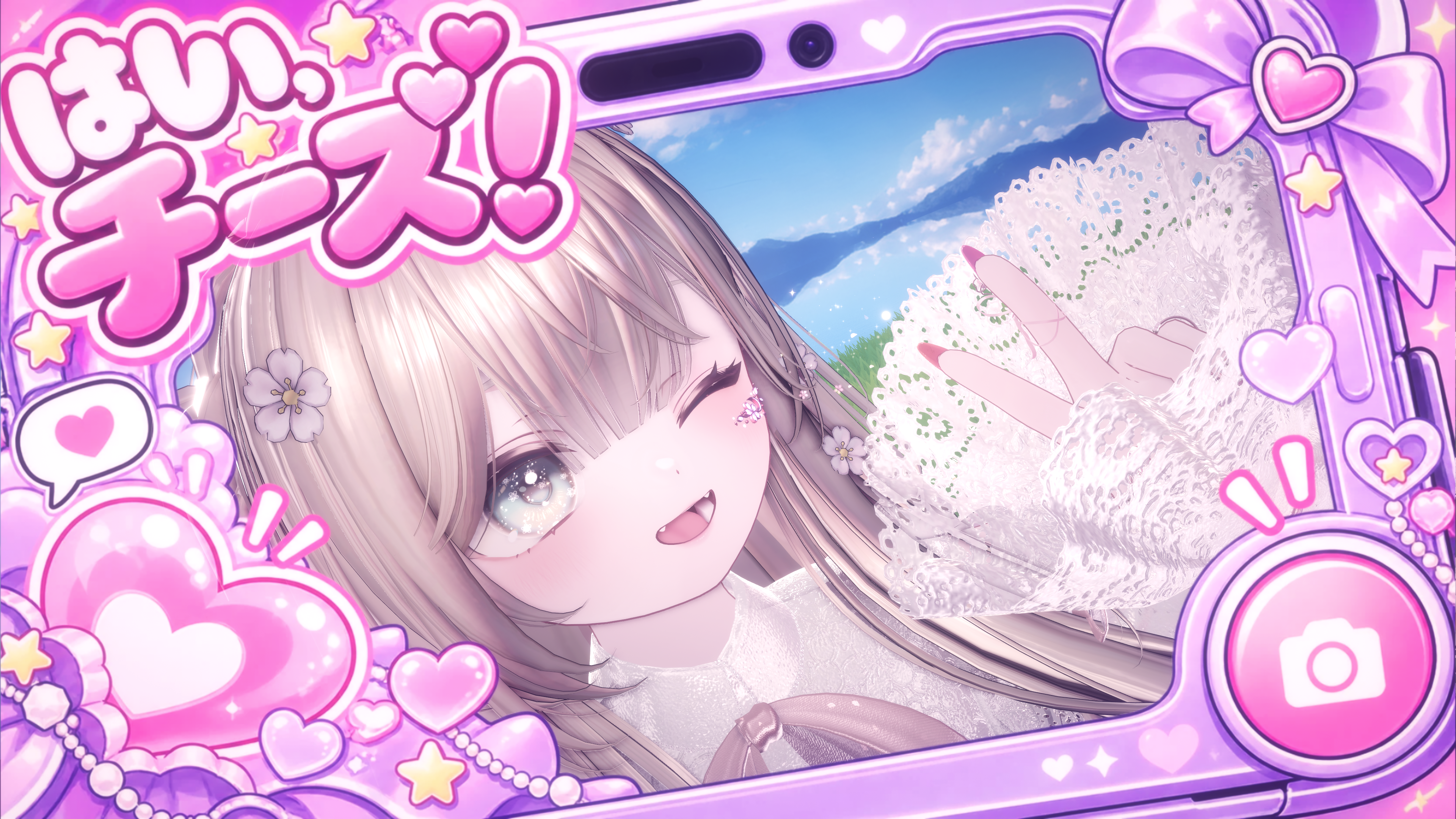
Brighten your photo while keeping the frame as it is
Adjust the frame and photo colors and brightness independently. Menu illustrations show the controls; frame names depend on your selections.
Need a hand?
Keep Unity open. Select PhotoLife on your avatar and reopen it using Open editor in the Inspector.
Click Apply to Unity, confirm the result, then upload your avatar again. Save edits only saves the draft.
The paid edition supports up to 30 frames. Switch between them one at a time in the Expressions menu. The free edition supports one frame.
Yes. Leave the photo empty and the camera view will show through the transparent parts of the frame.
The frame appears in your own camera. It does not appear on other players' screens.
Select Wide under Render bounds in the PhotoLife Inspector in Unity.
The browser editor opens in English. Use the Japanese link at the top to switch views; the English link switches back. Your editing draft is shared between the two views at the same local address. Japanese lettering inside the frame artwork is preserved.
Contact the seller and include a screenshot of the screen you need help with.
Visit our Jinxxy shop ↗Click any image to take a closer look
Explore 20 examples for portrait photos!
There are plenty more frames to discover.
Open the editor and find your favorites.